Showing posts with label posts. Show all posts
Showing posts with label posts. Show all posts
How To Display HTML CSS or JavaScript Code In Blogger Posts
If you want to show HTML, CSS, JavaScript, or PHP Codes with Syntax Highlighter in your blogger posts with some beautiful styles, tables & with your logo then the problem is solved because im going to show you how can you do this easily and fast on your blog. Actually its original name is (Code Highlighter) or you can call (Syntax Highlighter). Sometime people want to insert HTML, CSS code directly into blogger post but they get an error message that you cant do this in HTML post editor. But dont you worry everything is possible here.
9: Its work only in normal (Compose) area dont change to HTML editor in blogger posts.


Read more »
How To Insert CSS, JavaScript, HTML Codes In Blogger Posts? its the most common question asked by blog owners especially when theyre working on codes or running tech site to showing widgets codes in blogger posts.
So today i will show you how to do with some easy steps and make your codes more stylish in box,
In short as you know i love to share unique & long information with short tricks. I hate to waste your or mine time here so lets get to the point,
I know you love to see Demo so im going to show here below,
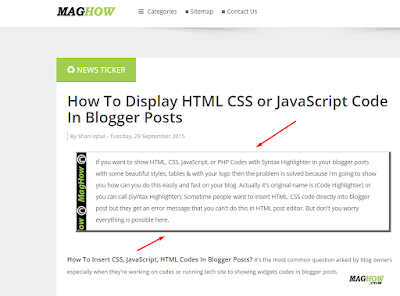
Follow my steps,
1: Go To Blogger
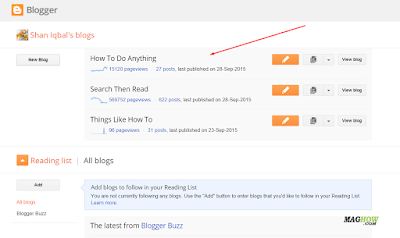
2: Select Your Blog
3: Click Templates
4: Select (Edit HTML)
5: Click Anywhere In HTML Just Press CTRL + F & Find ]]></b:skin> Code Like Below In Example Picture
6: Past Below Code Above ]]></b:skin> Just Like In Example Picture Below,
Code:
7: Now Go To Posts
I know you love to see Demo so im going to show here below,
Demo
Follow my steps,
1: Go To Blogger
2: Select Your Blog
3: Click Templates
 |
| Picture Help / Example |
4: Select (Edit HTML)
 |
| Picture Help / Example |
5: Click Anywhere In HTML Just Press CTRL + F & Find ]]></b:skin> Code Like Below In Example Picture
 |
| Picture Help / Example |
6: Past Below Code Above ]]></b:skin> Just Like In Example Picture Below,
Code:
.post blockquote {
background: #C8EFFF url(https://blogger.googleusercontent.com/img/b/R29vZ2xl/AVvXsEj8OWUfnA4lXkLBa_0V35nk5l4cRMcYRpjcAI9YEmoQFWcZnTPvgSdqMVICMdjlyGtVtZuUcOi-jgDmsKDrVJ2h-LITN8uzTB_Zi2hdU7F-dopi1zzM8Z7r1zlG3kBShHY1Sq2MSgQRpYU/h120/Copyright+Logo+For+HTMl+Code+Highlighter.png);
background-position:top left;
background-repeat:repeat-y;
margin: 0 20px;
padding: 10px 20px 10px 45px;
border-top: 2px solid #DDD;
border-right: 5px solid #666;
border-left: 2px solid #DDD;
border-bottom: 5px solid #666;
font-size: 0.9em;
}
.post blockquote p {
margin: 0;
padding: 0 0 15px;
}
.blockquote {
font: 18px normal sans-serif,Tahoma;
padding-top: 10px;
margin: 5px;
text-indent: 65px;
}
.blockquote div {
display: block;
padding-bottom:10px;
}
.blockquote p {
margin: 0;
padding-top:10px;
}
 |
| Picture Help / Example |
7: Now Go To Posts
 |
| Picture Help / Example |
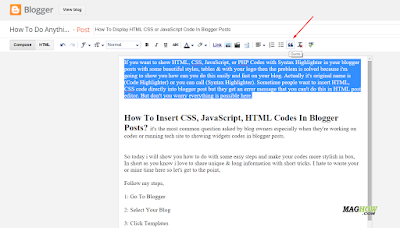
8: Select Any Text You Want To Show In Stylish Box & Click (Quote) Button Like Below In Picture.
 |
| Picture Help / Example |
9: Its work only in normal (Compose) area dont change to HTML editor in blogger posts.
Customization
10: Change Yellow Highlight URL From Step 6 With Your Own (c) Copyright Image,
Note: If you dont want to show image just remove URL and keep it simple without image.
11: Change Red Highlight Color From 6 Step Code & Its Background Color Select Your Favorite Color.
Note: I will recommend you to keep it white color like its in demo version.
Leave comments for suggestions/feedback or If you are facing any problem just let me know so that I could help. Stay tuned for upcoming posts like this. Peace and blessings :)

Remove Duplicate Blog Post or Recent Posts Widget From Blogger Problem Solved

Are you seeing double? Mean to say double recent posts, any double widgets in your blogger blog layout or something like that. Then you should immediately remove them and give good experience to your readers on your blog.
Post 1 Post 2 Post 3 ... (from top to bottom),
are you seeing two identical post columns, like this?
Post 1 Post 2 Post 3 Post 1 Post 2 Post 3
or duplicate posts inside a posts column, like this?
Post 1 Post 1 Post 2 Post 2 Post 3 Post 3
Anyway you just notice that if your readers are coming fast & reading your content then its wise for you to fix this big problem and remove these widgets.
1. Duplicate posts columns
The first and the more regular one is double posts columns. The second section looks precisely like the first, complete with food join and website pager. The second segment generally comes directly under the to begin with, for instance so:
Post 1 Post 2 Post 3 Post 1 Post 2 Post 3
This error is caused by duplicate Blog gadget. It is most likely occurred after you replaced your original template with a third party template.
To remove the duplicate, all you need to do is evacuate the additional Blog contraption. Be that as it may I by one means or another suppose you recently realized that. After all did you not recognize there are two Blog Posts widgets in the Layout page? The issue was you couldnt evacuate either of them in light of the fact that there was no Remove bind (which is ordinary for a Blog widget.
Now question is how can you remove the duplicate blog post widget. Just follow my instructions,
- Please before edit anything or remove you just back your template.
- Go to Template >
- Edit HTML.
- Find and delete the following line in your HTML code:
1<b:widgetid=Blog2locked=falsetitle=Blog Poststype=Blog/>or1<b:widgetid=Blog11locked=false
