Showing posts with label steps. Show all posts
Showing posts with label steps. Show all posts
How To Rotate A Video In VLC With 6 Easy Steps Picture Help
Getting some problem in your video ? or maybe you just captured the video from iPhone, Samsung, Sony, Tablet, or Smartphones with wrong video degrees and now you want to rotate that video in VLC without any software or without doing too much work on that ?
So then here is the best and easily solution with pictures help where you can read and see that how can i rotate video in VLC.
Note: You should update your vlc or download the latest VLC player from Here.
Step 1: Open VLC & Select Tools (Video Must Be Open In VLC)
.png)
Step 2: Select Effects and Filters
.png)
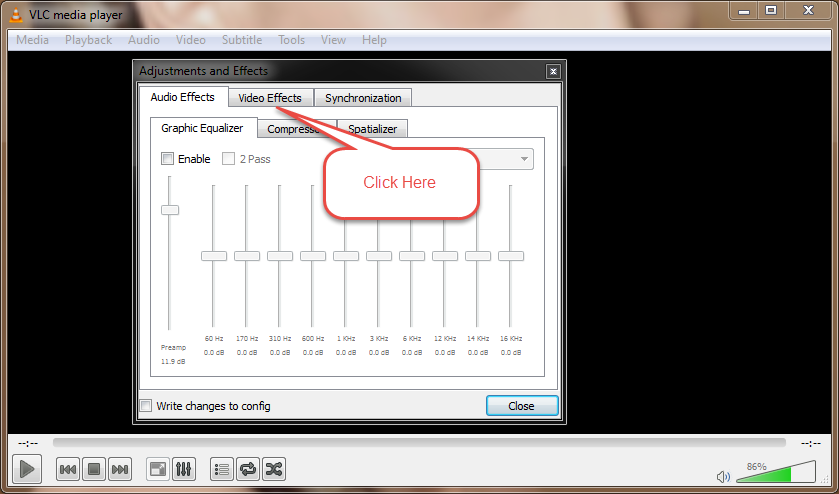
Step 3: Click On Video Effects
.png)
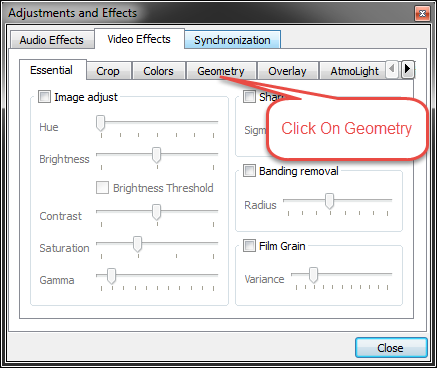
Step 4: Click On Geometry
.png)
Step 5: Check Box (Rotate)
.png)
Step 6: Now Last Step Just Move This Angel & Youre Done!
.png)


Read more »
So then here is the best and easily solution with pictures help where you can read and see that how can i rotate video in VLC.
Note: You should update your vlc or download the latest VLC player from Here.
Step 1: Open VLC & Select Tools (Video Must Be Open In VLC)
Step 2: Select Effects and Filters
Step 3: Click On Video Effects
Step 4: Click On Geometry
Step 5: Check Box (Rotate)
Step 6: Now Last Step Just Move This Angel & Youre Done!
If you have face any problem to rotate your video in vlc then please im here to help you. Thanks!

How To Take A Screenshots On A Mac Apple 2 Ways 2 Steps
If you are looking for tutorial that how to take a screenshots on a mac apple then you are on right place here. You just need to follow some steps and you can take screenshots on mac with many ways.

I will explain here below and you have to follow my steps.
Step 1
! How to take a screenshots on a Mac
- Hold Down Command + Shift + #3
2. Hold Down Command + Shift + $4
.PNG) |
| Click On This Picture To View Large |
If You Dont Want To Use Any Keyboard Shortcuts On Mac Then You Use This Below Method :)
- Go To File
- Select Take Screen Shot Option From Option List
- Select How You Want To Take Screenshot
- Youre Done
.PNG) |
| Click On This Picture To View Large |
How to Permanently Delete a Facebook Account In 2 Steps Latest
In case youre finished with Facebook, you may be circling in rings attempting to evaluate how to erase your record. They surely dont make it simple to discover. Take after this manual for verify that you spare the greater part of the information you require and erase your record for great.

You just visit the delete account page where you can delete your account in just few seconds.
Note: But im saying again that if you want to keep your account but dont want to use then i suggest you that you just deactivate your account temporary not permanently delete.

Read more »
You just visit the delete account page where you can delete your account in just few seconds.
Note: But im saying again that if you want to keep your account but dont want to use then i suggest you that you just deactivate your account temporary not permanently delete.
1) Permanently Account Delete Steps.
- Visit This Link
- Click On "Delete My Account" Button
Here Is Message On Delete Account Page.
If you do not think you will use Facebook again and would like your account deleted, we can take care of this for you. Keep in mind that you will not be able to reactivate your account or retrieve any of the content or information you have added.
If you would still like your account deleted, click "Delete My Account".
Source: Facebook & Delete Account Page
2) Temporary Account Deactivate Steps.
- Visit This Link
- Select Your Reason Why You Are Deactivating
3. Then Select Click On Confirm And Youre Done ! :)
Please let me know if you have any problem in this case.
